Configure Integrations
Integration Agnostic
Written By Chris Scaminaci
Last updated About 4 hours ago
Configuring Integrations
Integration Agnostic
BillingBot is distributor agnostic - you can use any combination of distributor integrations with BillingBot and there is no longer a required order of setup.
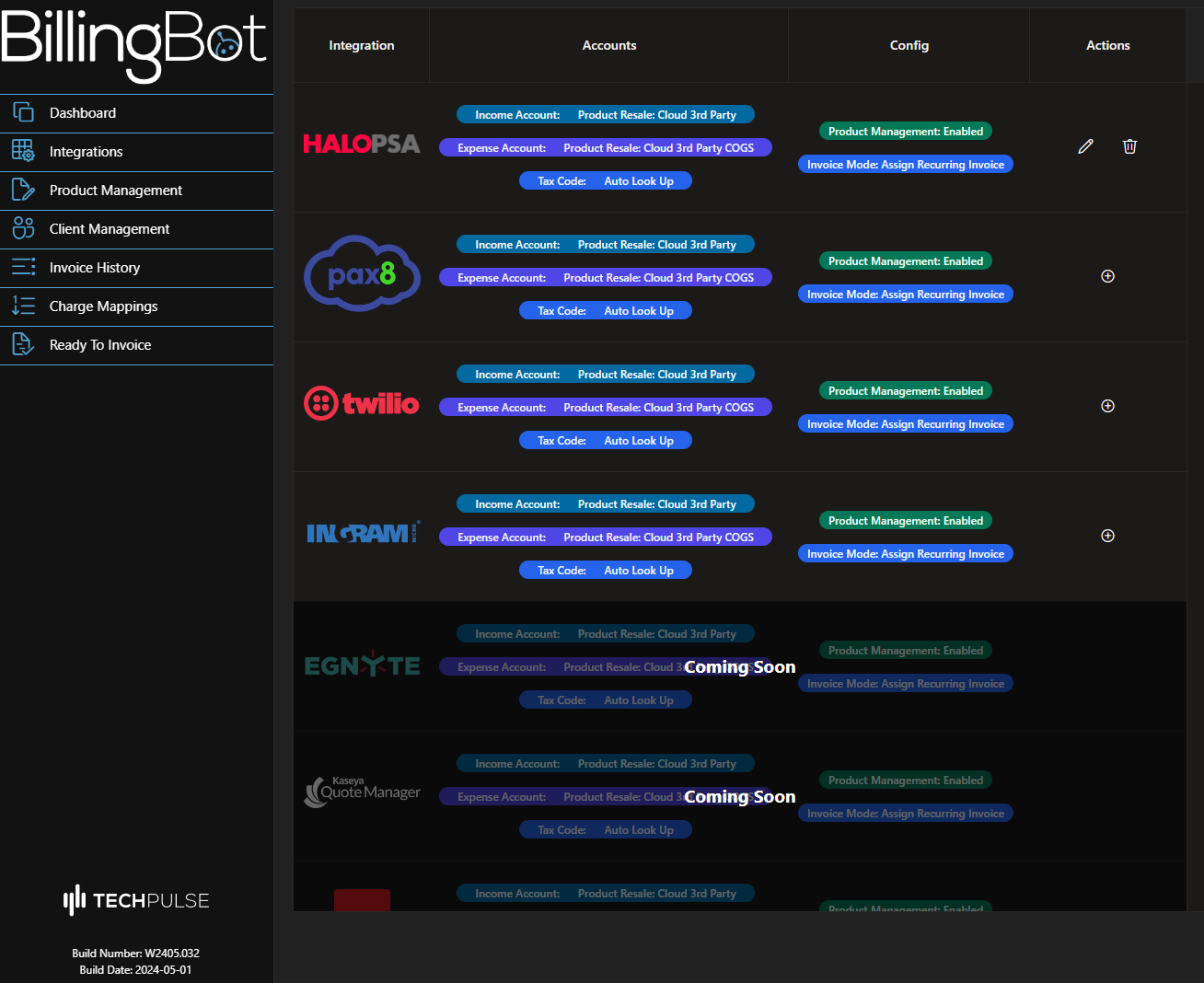
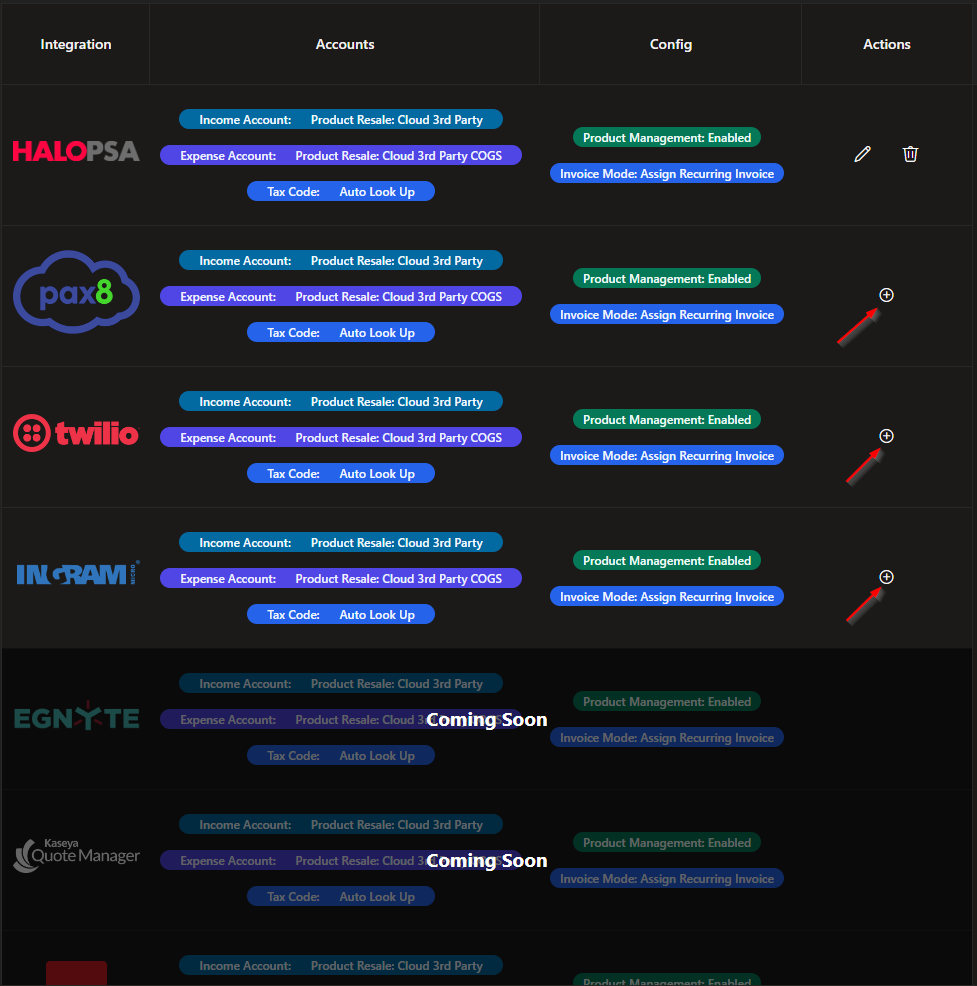
Opening Configuration Window
Clicking the + sign next to an integration opens its configuration window.
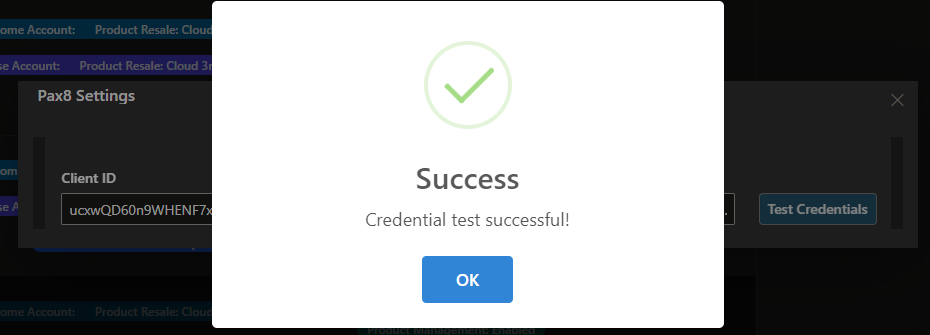
Entering Requisite Information
In the configuration window, enter the necessary information for the integration.

Test Credentials and Configure Integration
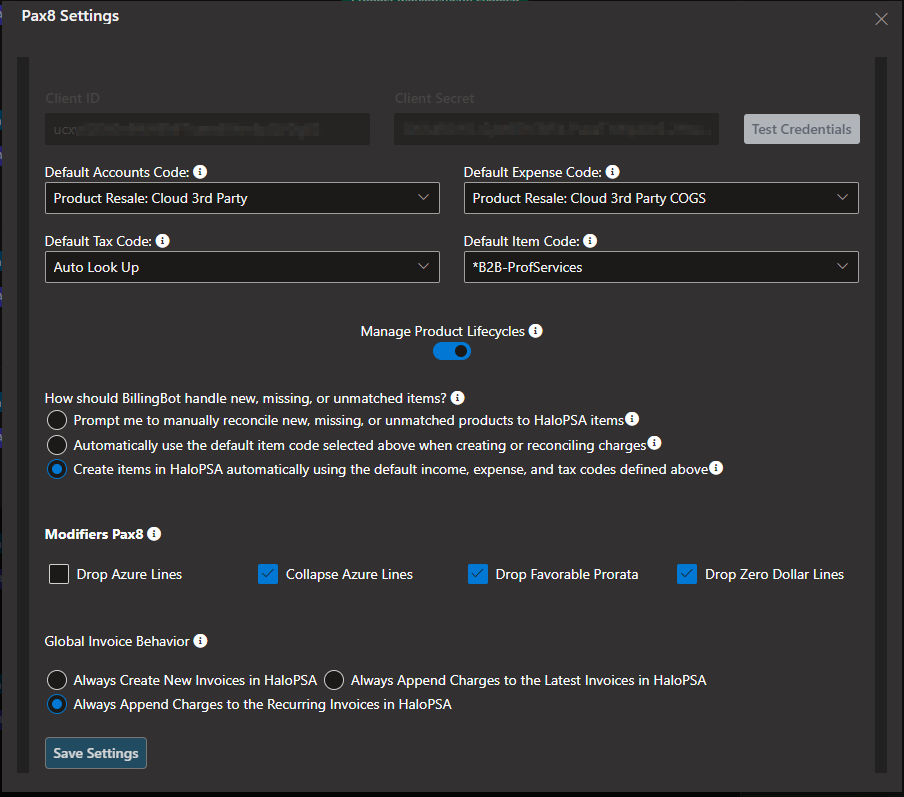
Configure Integration Specific Settings
Integration Overrides
When configuring your integrations, note that the settings on these tabs overrides the global defaults. This way, it is possible to have different account codes and invoice/modifier behaviors for different integrations.
Saving Changes
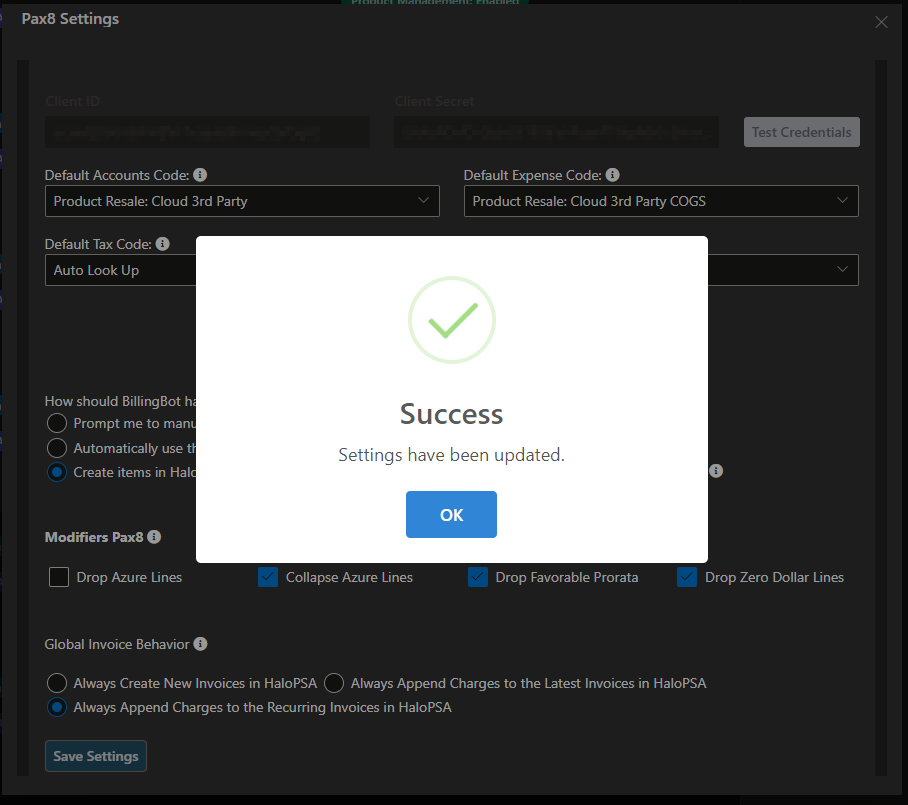
After entering or editing information, click save to configure the integration.
Confirmation Message
A success message will indicate that the integration is now configured and ready for use.
Editing Integrations
Accessing Edit Option
Users can edit integrations by clicking the pencil/edit icon.
Modifying Configuration
Edit the existing information in the configuration window as needed and save changes.
Deleting Integration Configuration
Locating Delete Option
To delete an integration configuration, click on the trashcan/delete icon.
Confirming Deletion
A confirmation prompt may appear before permanently deleting the integration configuration.
Was this helpful?
Still need help? Ask the team