Q-Notices
A Q-Notice is a note about a ticket, client, user, agent or your whole organisation that technicians see wherever that record appears and that AI analysis can take into account.
Written By Chris Scaminaci
Last updated About 1 hour ago
A Q-Notice is a note about a ticket, client, user, agent or your whole organisation. Technicians see it wherever that record appears, and QuantumOps can take it into account when it analyses tickets. Use one for things like "this client is migrating this weekend" or "do not reboot that server".
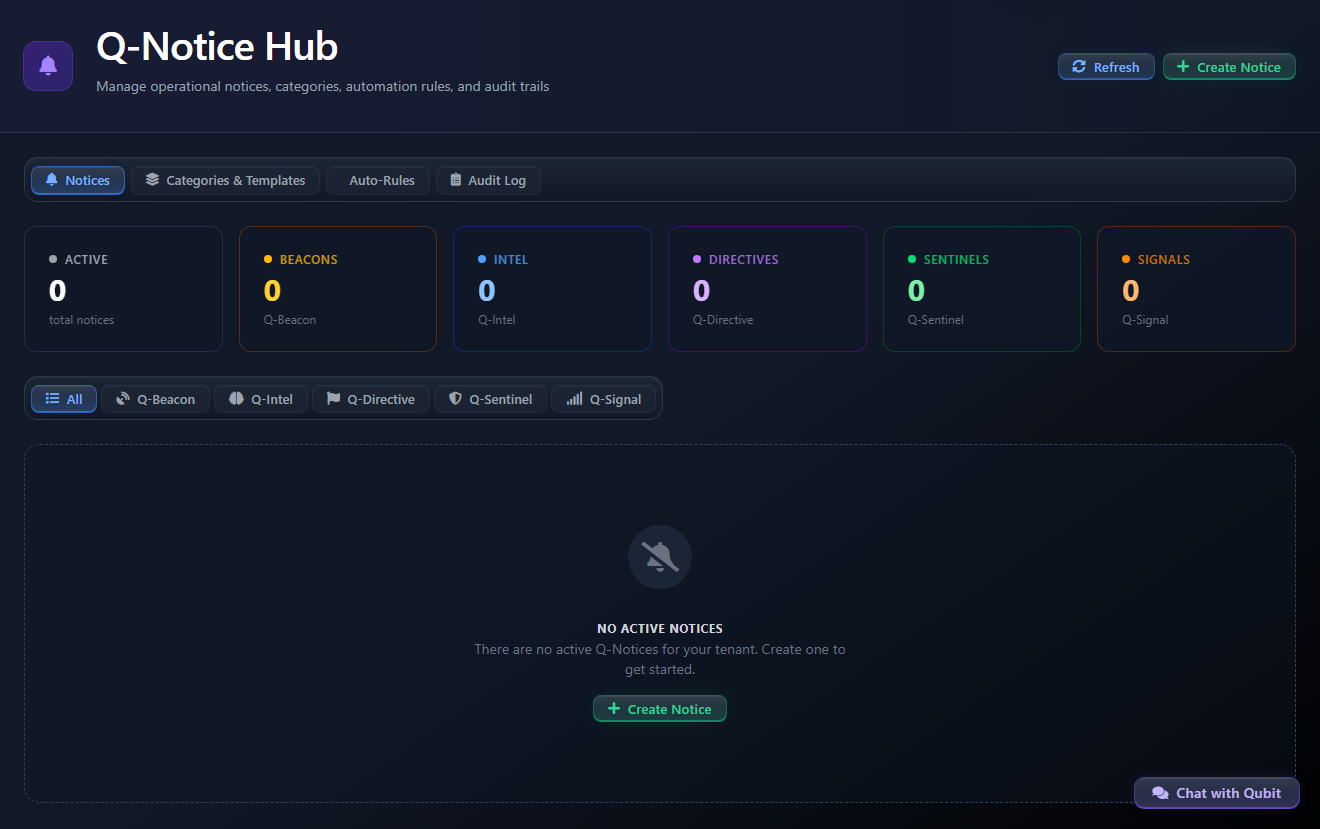
The sidebar calls the screen Q-Notice Center and the page itself is headed Q-Notice Hub. They are the same screen, at /qnotice.
Before you start: the Q-Notice Engine module must be on for your organisation (see Modules reference). Your role decides what you can do; the table under "Who can do what" lists the roles.
Notice types
Every notice has one type. You choose it when you issue the notice and cannot change it afterwards.
The type cards in the issuing wizard read Beacon, Intel, Directive, Sentinel and Signal, without the Q-.
Severity
Every notice also has a severity: Info, Advisory, Warning, Alert or Critical, from lowest to highest urgency. The severity shows as a badge on the notice and on the cards sent to chat, and indicators list the most severe notices first. Issuing a Q-Notice has a guide to choosing one.
What a notice applies to
A notice has one or more targets. A target is a Ticket, Client, User, Agent, Organization, System or Custom record. The notice shows wherever one of its targets appears.
- A notice with a ticket, client, user or agent target applies to that record only.
- A notice with an Organization or System target appears on the indicator of every record, because it applies to everyone.
- A notice made from the quick panel of the legacy Dispatch Control Center has no target. It is listed in the Hub and on that board, but it is not attached to any record.
- A notice posted for the whole organisation from the Intel drawer of the dispatch board has an Organization target, so it appears on every record's indicator. See Intel: alerts, capacity and AI insights.
Who can do what
Someone without the Q-Notice Admin role who selects one of those three tabs sees a message that says they need the role. The quick panel on a ticket, client, user or call page needs no Q-Notice role: anyone who can use that page can issue a notice from it.
Chat checks the first row's roles for all three actions, so the narrower edit-and-expire list above applies only in QuantumOps itself. A chat user who is not linked, or whose role is not on the list, gets a refusal and nothing runs; see Who can use the Q-Notice commands.
An administrator assigns the Q-Notice roles in Team Management. See also Roles and access.
Read the Notices tab
The Notices tab lists every active notice in your organisation, newest first.
- The tiles at the top count the active notices in total (Active) and for each type (Beacons, Intel, Directives, Sentinels, Signals).
- The tabs under the tiles (All, Q-Beacon, Q-Intel, Q-Directive, Q-Sentinel, Q-Signal) filter the list by type.
- Each row shows the title, the severity, the type, a message excerpt, the targets, who issued it, when it was issued, when it expires and its category.
- A LLM badge means the notice is included in AI processing, and a Permanent badge means it never expires. A notice that expires within two hours also shows the minutes left. A notice issued with no expiry rule shows No expiry set; it also stays until someone expires it.
- Refresh reloads the tab.
Select View to open the full notice, including any LLM Instructions it carries. Select Create Notice to start the wizard described in Issuing a Q-Notice. A tab that has no notices says No active notices, which is the normal starting state.
Edit or expire a notice
Editing and expiring need one of the roles that can edit notices.
- On the Notices tab, find the notice.
- Select Edit. You can change the title, the message, the severity and Include in LLM Processing. The type is fixed.
- Select Save Changes. QuantumOps sends the updated notice again to the channels chosen on it; see How Q-Notices are delivered.
To change the targets, the expiry or the AI instructions, expire the notice and issue a new one.
To end a notice early, select Expire. There is no confirmation: the notice expires as soon as you select it, leaves the active list at once, and the expiry is recorded in the audit log.
Where you see notices
- Header. When your organisation has at least one active notice, a note icon with a red count appears in the top bar. Hover over it to read N active Q-Notice(s) - click to manage; selecting it opens the Hub. The count covers all active notices, not only yours.
- Indicators. A small bell shows the active notices for one record, and an outlined bell means there are none. Indicators sit next to ticket numbers in the ticket list on Home, at the top of the Client, User and Agent dashboards, and beside the client and the caller on the Call Taking screen. Select a bell to see each notice's title, type and severity. The small plus button, or Issue Q-Notice at the bottom of the list, issues a notice for that record.
- Ticket and triage dashboards. The Q-Notices button opens the quick panel for that ticket.
- Customer Success Center. The Q-Notice button on an alert card issues a notice for the alert's ticket.
- Dispatch board. On the dispatch board that runs in the browser extension, New Q-Notice in the Q-Notices panel of Intel posts an organisation-wide notice, and a right-click on a ticket or an agent posts one for that record. See Intel: alerts, capacity and AI insights. Organisation-wide notices show on the board as ribbons: see Pulse, live calls and notice ribbons.
- Legacy Dispatch Control Center. The older web board has a Q-Notices section with a + New button. See The legacy Dispatch Control Center.
- Browser extension. The extension shows the notices on a client, user or agent: see Client, User and Agent tabs.
The Hub, the indicators and the dispatch board update by themselves when a notice is issued, edited or expires. The count in the top bar is read when the page loads and changes when you reload.
How notices reach AI analysis
The screen says LLM, short for large language model, the AI that analyses tickets. A notice that is included in AI processing is taken into account when QuantumOps analyses a ticket in scope, until the notice expires. A ticket is in scope when the notice targets that ticket, the ticket's client or the ticket's user, or when it targets the whole organisation or the system. Agent and custom targets do not reach ticket analysis, and neither does a notice with no target.
If the notice has custom instructions, QuantumOps passes them along with the message. Keep notices that you include in AI processing short and current: an old notice keeps shaping analysis for as long as it stays active.
Notices you do not write
Some notices are raised for you. A rule on the Auto-Rules tab raises a notice when its conditions are met; see Q-Notice auto-rules. QuantumOps also raises notices about the health of the AI providers it depends on; see Q-Notice categories, templates and audit log. Older alert rules live in the Alert Engine (legacy); you can import them into auto-rules (see Alert Engine (legacy)).
Related
- Issuing a Q-Notice: the full wizard and the quick panel.
- How Q-Notices are delivered: live updates, Slack and Teams cards, and e-mail.
- Q-Notice auto-rules: notices created by events and schedules.
- Q-Notice categories, templates and audit log: the administrator tabs.
- Alert Engine (legacy): the older alert rules and how to import them.
Was this helpful?
Still need help? Ask the team