Q-Director Settings
Q-Director Settings is the administrator screen where you decide how QuantumOps analyses, classifies, triages and researches your tickets, and which results it writes back to HaloPSA.
Written By Chris Scaminaci
Last updated About 3 hours ago
Q-Director Settings is where an administrator decides how QuantumOps treats your tickets: which AI model refreshes them, what counts as stale, how sensitive sentiment alerts are, what Triage Assist does, which research findings reach HaloPSA, and how dispatch and scheduling behave. Most of what dispatchers and managers see on the other screens is the result of a switch you set here.
Before you start: you need the Administrator or the Q-Director Configuration role (see Roles and access). The Q-Director Config link in the sidebar shows only for those two roles, and the screen opens only for them. The ticket type, client and team lists on these tabs come from HaloPSA, so your HaloPSA connection has to be working.
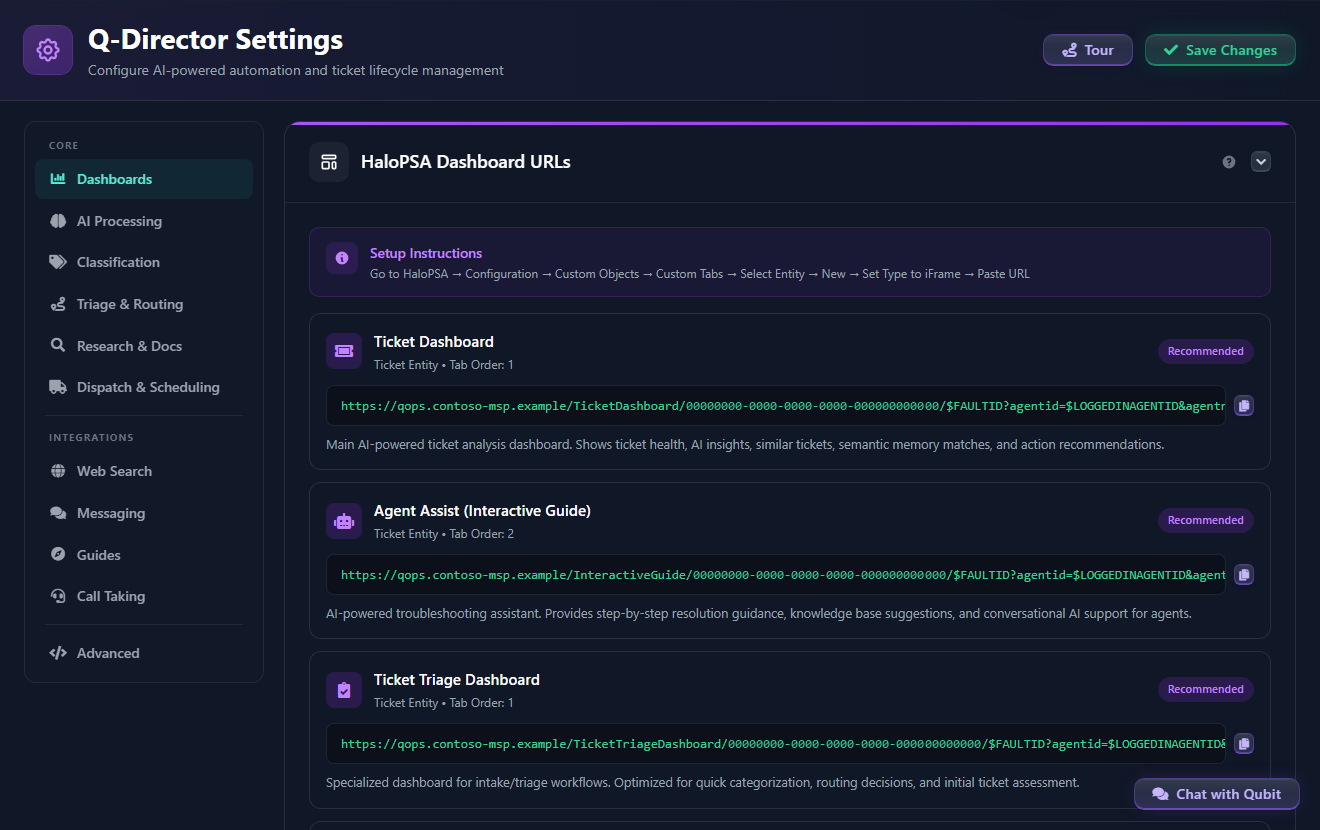
Open Q-Director Settings
- In the sidebar, choose Configuration → Q-Director Config. The address is
/qdirector-settings. - Pick a tab in the column on the left.
The tabs are in two groups. Core holds the tabs that decide how QuantumOps thinks about a ticket. Integrations holds the tabs for the channels and tools around it. Advanced sits below both groups.
What each tab is for
Three tabs depend on a module. Web Search needs the Web Search module, Guides needs Interactive Guide, and Call Taking needs Call Center Operations. When a module is off in Module Management, its tab is not in the column, and a link to it opens Dashboards instead. Messaging always shows.
The Advanced tab
Each card on Advanced shows a locked preview of its settings and a marker that says whether the text is valid. To change one:
- Select Edit on the card.
- Change the text in the editor. Format tidies it and Validate checks it.
- Select Save Changes in the editor. The editor refuses text that is not valid.
- Select Save Changes at the top of the page. The editor's button applies your edit to the screen only.
AI settings on Tenant Configuration
Some AI settings are not on this screen. They are on Tenant Configuration, which Administrators open with the gear icon in the page header (its tooltip is Settings):
- AI providers and models: switch providers on, enter their keys, choose the model for each job and set the monthly AI budget.
- Communication policy for AI replies: the tone, banned phrases, disclaimers and signature that every AI-drafted reply follows.
- Tenant settings: the rest of that page. Open Q-Director Settings at its foot brings you back here.
Save your changes
The Save Changes button at the top right of the page saves the AI Processing, Classification, Triage & Routing, Research & Docs, Dispatch & Scheduling and Advanced tabs together. The button also shows on Dashboards, which has nothing to save. Your edits stay on screen when you move between those tabs, so one save covers all of them. QuantumOps writes only the fields you changed, and the confirmation tells you how many.
Some parts of the page save on their own and do not wait for Save Changes:
- The Web Search, Messaging, Guides and Call Taking tabs have their own buttons. The page's Save Changes button is hidden on them.
- The Client & Contact Calibration, Research Output Profile and Company glossary cards on the Classification and Research & Docs tabs save their own rows.
Some buttons change the screen only. Nothing is kept until you select Save Changes afterwards: Use recommended values, Save Configuration in the stale-rule dialog, and Save Changes in the Advanced editor.
Use the recommended values
Many fields show a suggested starting value, either under the field as Recommended: 3 business days or at the end of the field's help bubble. When a field already holds the suggested value, the hint changes to Uses the recommended value.
Several sections also have a Use recommended values button: Incremental Lifecycle Analysis, Stale Ticket Detection, Sentiment & Tonality Analysis, Duplicate Detection, Recurring Incident Detection, Dashboard Display & Performance, Estimate Defaults and Guided Work. It fills that section's fields with the suggested values and tells you how many it changed. Review them, then select Save Changes to keep them.
The suggestions are starting points. Your own desk's volumes and habits come first.
Open a tab from a link
A link can open a tab directly by adding its name to the address, for example /qdirector-settings?tab=classification. The tab names are dashboards, ai-processing, classification, triage-routing, research-docs, dispatch, web-search, messaging, guides, call-taking and advanced. An address with no tab, or a name QuantumOps does not know, opens Dashboards. Some links from other screens, such as the Customer Success settings, also scroll to one section of the tab.
Take the guided tour
Select Tour at the top of the page. The tour highlights the header, the tab column, Save Changes and the main sections in turn, and it switches tabs for you as it goes. It ends at the Tour button, so you can start it again whenever you want.
Older addresses that open a tab here
These addresses are not separate screens. They send you to the matching tab, so existing bookmarks and links keep working. They are guarded like Q-Director Settings itself: without the Administrator or Q-Director Configuration role, an older address shows Access Denied instead of passing you on.
Related pages
- Q-Director: AI Processing, sentiment and categorisation, triage and routing and research and documentation: the four main tabs.
- Dispatch workflow and scheduling settings: the Dispatch & Scheduling tab.
- Module Management: turns the module-dependent tabs on and off.
- AI providers and models: the AI providers, models and monthly budget on Tenant Configuration.
- Communication policy for AI replies: the rules for AI-drafted replies, also on Tenant Configuration.
Was this helpful?
Still need help? Ask the team